
Subscribe

OneSweet Store, up to 90% off retail price

Our Social Media Pages

Monday, 11 April 2011 13:31

New iPhone App – OneSuite Mobile Dialer

Written by  Michael, Tech Guy

You love your iPhone, you love OneSuite’s cheap international calls, and now there’s even more to love with OneSuite’s new mobile app, free for download at the App Store.

No Wi-Fi or data plan required! The app acts as your invisible hand, eliminating the need to dial access numbers, PINs or destination numbers. You’ll know you’re being connected when you hear the prompts, just sit back until your call is picked up.

Following just a few easy steps, you can integrate the OneSuite app with your iPhone’s sleek features:

Let’s get you started!
Setup

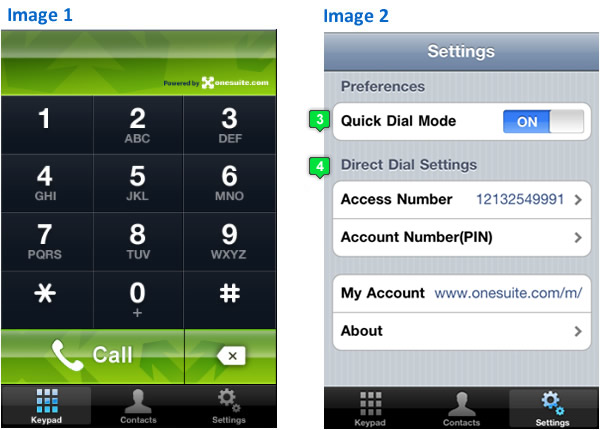
  1. After you’ve downloaded the app, open it and you’ll see the OneSuite Mobile Dialer. (as shown in image 1)
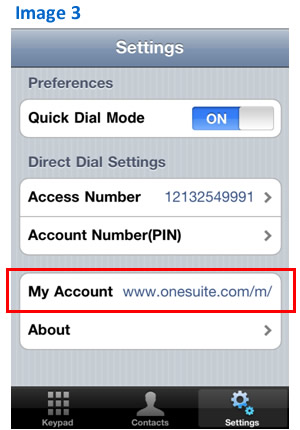
  2. Go to Settings and you will see the interface as shown in image 2.
  3. Preferences: Quick Dial Mode > Slide to turn ON
  4. Direct Dial Settings: Direct Dial Settings > 1). Enter your Account Number (PIN) ), skip if you have ZipDial set up for your cell phone number already, or see “Improve Your Calling Experience 1”; 2). Keep the default U.S. local access number, or enter another local access number. If you’re outside of the U.S. or Canada, enter an international access number.

Improve Your Calling Experience

Expedite your OneSuite Mobile Dialer connection time by following these useful tips:

  1. ZipDial + RapiDial = Speed 
    Save your phone under ZipDial + RapiDial so your OneSuite Mobile Dialer won’t need to take the extra step of entering your account number/PIN for you during the dialing process. See our previous blog post for ZipDial and RapiDial set up instructions. Remember that you DO NOT need to enter your Account Number (PIN) under Settings > Direct Dial Settings when your phone is saved under ZipDial.
  2. Skip Balance and Minute Announcements
    For an even faster connection, when you are setting up ZipDial, under PIN Management, leave out your Balance and Minute Announcements so it won’t be included in the prompts.
  3. One Touch Dialing
    Keep Quick Dial Mode turned on (see Setup, step 3) to call straight from your contact list.
  4. Destination Number Format
    In your contacts:
    Enter your U.S. and Canada numbers as: 1 + area code + phone number;
    Enter your international numbers as: 011 + country code + area code + phone number.
Account Management

Mobile Site
To access your OneSuite account, visit our companion mobile site to manage settings, look up call history, check rates and search for local, toll-free or international access numbers.

You can also reach the mobile site from your app, under Settings > My Account.

And a final reminder, OneSuite's Mobile Dialer app is for your iPhone only! The app requires wireless service to make calls, and is not compatible with iPod or iPad.


Last modified on Tuesday, 10 May 2011 09:32

14 comments

  • Comment Link Qiang Wan Thursday, 02 June 2011 15:37 posted by Qiang Wan

    When using OneSuite iPhone app to dial numbers from my iPhone address book, it should translate the initial plus (+) sign to 011 automatically (except for +1). Right now it ignores the plus sign thus making the dialed number (such as +86 for China) invalid. This is especially difficult when I cannot edit the phone numbers retrieved from my address book in your app. Without this enhanced feature I would have to rely on Skype's iPhone app to dial address book entries. Hope you can make the correction soon.

  • Comment Link Grant Dehart Friday, 10 June 2011 10:25 posted by Grant Dehart

    I am a happy OneSuite customer, but do not have an iPhone.
    Will this App work on an iPod Touch 3G or an iPad 2 with AT&T 3G?
    If so, will either or both work through OneSuite's country numbers in Europe?
    (We just returned from 3 weeks in France where we used OneSuite several times to call U.S. our unlocked GSM cell phone.
    Please advise.

  • Comment Link Michael, Tech Guy Thursday, 16 June 2011 09:21 posted by Michael, Tech Guy

    @ Qiang Wan

    Thank you for the feedback, we are actually already working on adding this functionality. We will announce the update soon, please stay tuned!

    Regards,

    Michael

  • Comment Link Michael, Tech Guy Thursday, 16 June 2011 17:07 posted by Michael, Tech Guy

    @ Grant Dehart

    We are currently developing Wi-Fi functionality for our app, so once completed, you will be able to use it on an iPod Touch or an iPad. You will then be able to call from abroad without a SIM card; we will definitely provide detailed calling instructions for you along with the app.

    Thanks so much for your feedback! If you haven't already, you can sign up [http://www.onesuite.com/my_myinfo.asp] for the OneSuite newsletter to make sure you're updated on our next app release along with other OneSuite goodies!

    Regards,

    Michael

  • Comment Link David Thursday, 08 September 2011 12:15 posted by David

    Interested in knowing about OneSuite Fax capabilities FROM an iPhone. Is such a thing planned (or currently possible, and I have not yet found it?)
    -IT Professional working with clients

  • Comment Link Michael, Tech Guy Thursday, 08 September 2011 17:00 posted by Michael, Tech Guy

    Hi David, We currently don't have an iPhone app for OneSuite Fax available for sending out faxes, but you can always receive faxes via email and view it on iPhone.

    Regards,

    Michael

  • Comment Link Jing Monday, 17 October 2011 07:28 posted by Jing

    I just downloaded the app on my 4s phone, and set it up per the instruction, but when I dial a number, it doesn't go through, and I see a 77 added between the Access number and the long distance number that I'm dialing, I couldn't figure out where that came from.

  • Comment Link Ming, Gossip Girl Monday, 17 October 2011 10:26 posted by Ming, Gossip Girl

    Hi Jing, we ‘ve tested calls and find that everything is working smoothly from our side. Can you send us an email to marketing@onesuite.com so we can troubleshoot your issue?

    Thanks!

  • Comment Link Ming, Gossip Girl Tuesday, 18 October 2011 21:22 posted by Ming, Gossip Girl

    Hi Jing, as aforementioned, the issue is with iOS5 and we're working on a fix so you can use the app soon. For now, have you set up 4 key dialing [http://blog.onesuite.com/index.php/blog/item/101-how-to-dial-4-keys-to-make-international-calls.html] yet?

    Thanks so much for understanding!

  • Comment Link Tim Wednesday, 26 October 2011 08:00 posted by Tim

    The iphone app never works. it dials in and enters my pin and it says it is not valid. If I enter it manually it works fine. I have tried this app multiple times and the multiple versions as they have come out and it never works properly. It is really anoying as I would use it all the time and spend more $$ at onesuite if you could get this app to actually work right!! Sometimes it gets the pin and won't accept the number. I have also noticed that any noise at all in the background, even a whisper, messes up the number entry to onesuite.

  • Comment Link Michael, Tech Guy Wednesday, 26 October 2011 15:12 posted by Michael, Tech Guy

    Hello Tim,

    It sounds like we might need to troubleshoot for you, since some examples you bring up, especially regarding voice recognition (“that any noise at all in the background, even a whisper, messes up the number entry to onesuite”) is not part of the app’s function.


    Please send an email to marketing@onesuite.com so we can straighten this out for you. And if you’d like to be reached by phone, please also include your phone number.

    Thanks!

  • Comment Link Michael, Tech Guy Friday, 04 November 2011 11:54 posted by Michael, Tech Guy

    Hi all, we’ve released an updated OneSuite Mobile Dialer app (version 1.0.8) to fix issues with the new iOS5. Just go to your app store on your iPhone to update. And let us know if there are any issues!

    Thanks!

  • Comment Link Beth Shannon Tuesday, 20 December 2011 17:07 posted by Beth Shannon

    Hi, Are you planning to add iTouch capability?

  • Comment Link Michael, Tech Guy Wednesday, 28 December 2011 10:38 posted by Michael, Tech Guy

    Hi Beth, it is in development, but won't be available in the next couple of months!

Leave a comment

Make sure you enter the (*) required information where indicated.
Basic HTML code is allowed.